

Windows operating systems provide a convenient LAN sharing feature that allows users to share files and resources over a home or office network. However, when attempting to access shared resources, you may encounter the following message: “Because your organization’s security policy prevents unauthenticated guest access.” This issue may occur across Windows 7 through Windows 11. This article provides detailed instructions on how to resolve it.
Background
Suppose you have two computers: Server-A (referred to as A) and Client-B (referred to as B). You have already enabled LAN sharing on computer A, but when computer B attempts to access the shared resources on computer A, it receives the error message above. In this case, you need to take several steps to resolve the issue.
Solution
Change the policy group settings on computer B
- Use the keyboard shortcut WIN+R to open the Run dialog box.
- Enter “gpedit.msc” in the Run dialog box and press Enter. This will open the Local Group Policy Editor.
- In the Local Group Policy Editor, expand the following paths in order: Computer Configuration –> Administrative Templates –> Network.
- In the right pane, find the “LanmanWorkstation” option and double-click to open it.
- In the Properties window for the LanmanWorkstation option, find the “Allow insecure guest logons” option. Set it to “Enabled,” and then click “OK.”
- Close the Local Group Policy Editor.
After changing the policy group settings on computer B by following the steps above, try accessing the shared resources on computer A again. In most cases, you will no longer encounter the error “Because your organization’s security policy has blocked unauthenticated guest access.”
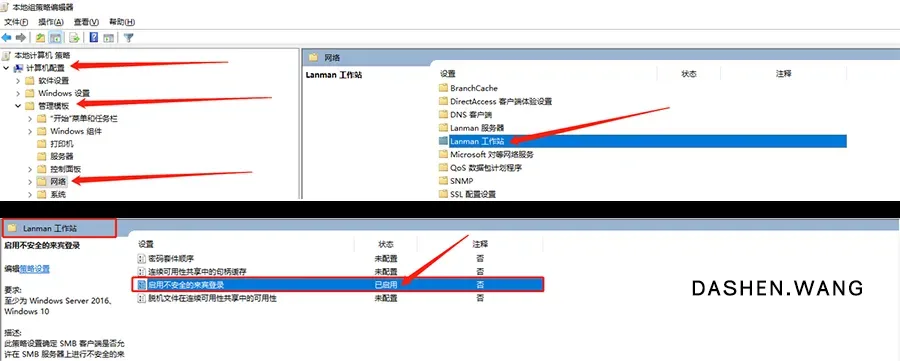
The key to this issue is ensuring that the policy group settings on computer B allow insecure guest logons so that shared resources can be accessed normally.
Summary
In the Windows operating system, LAN sharing is a very useful feature, but sometimes you may encounter the issue where the security policy blocks unauthenticated guest access. By modifying the policy group settings on computer B, you can resolve this problem and ensure smooth access to shared resources. Hopefully this article has been helpful, allowing you to better enjoy the convenient features of the Windows operating system.
Stop being troubled by this error message—follow the steps above right away to get your LAN sharing running smoothly. If you encounter other Windows-related issues, feel free to consult relevant tutorials so you can better resolve and optimize your operating system experience.
May your Windows operating system always remain efficient and stable, providing convenience for both your work and entertainment!